



How To Fix InterLink Registration Errors – Create Your Account Successfully
Aug 26, 2026
Technology
Having trouble completing your InterLink registration? This guide shows you how to fix InterLink registration errors that may prevent you from creating an account and becoming a verified Human Node. From phone and email issues to face verification and network errors, you’ll find simple solutions to the most common registration problems and get your InterLink account set up successfully.
Common InterLink registration errors and how to fix them
Understanding the root cause of each error is the fastest way to clear it. Below are the five most frequent problems users face during sign-up, along with practical fixes that work for the majority of cases.
1. InterLink ID Already Used
An InterLink ID is designed to be unique to each verified human. If the ID you entered has already been registered or is associated with an existing InterLink account, the app may prevent you from using it again. This is part of InterLink's one-person-one-identity model, which is designed to prevent duplicate identities and Sybil accounts across the network.
How to fix:
- Check the InterLink ID you entered and make sure there are no spelling or formatting errors.
- If the ID already belongs to you, use the existing account and its available login or recovery method instead of creating another identity.
- Do not repeatedly create new InterLink IDs to bypass the error. InterLink's identity system is designed around a unique identity for each verified human.
- If you believe the ID was registered incorrectly or you cannot access the existing account, contact InterLink through its official support channels for account recovery.
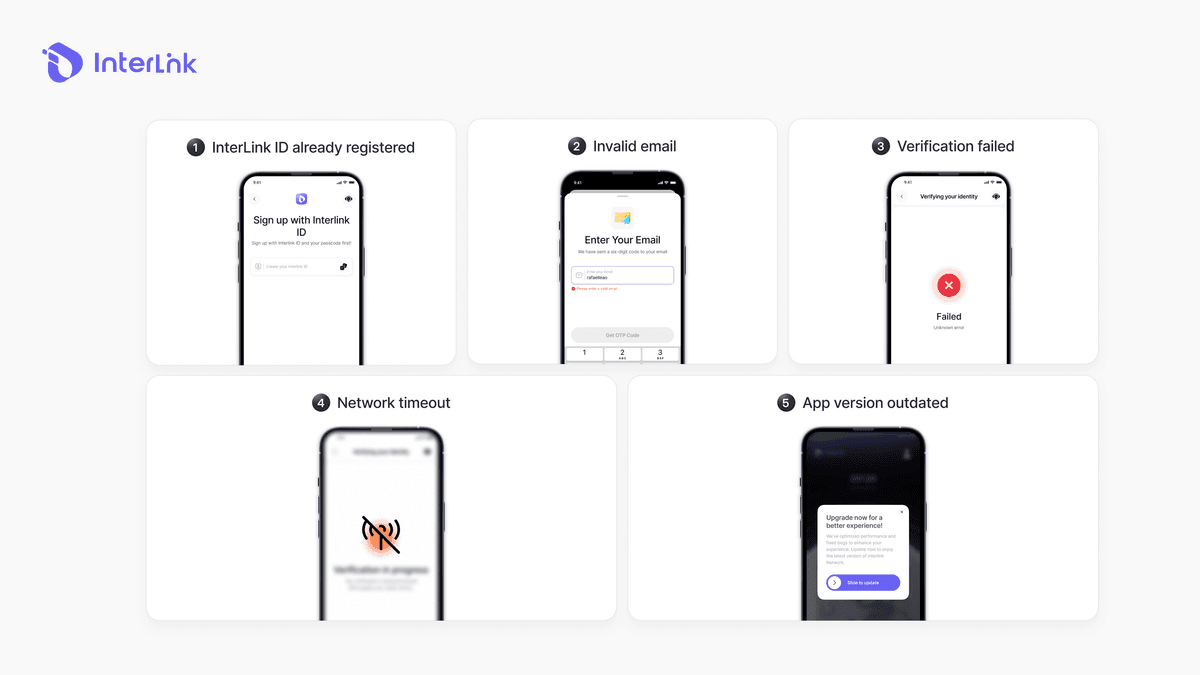
2. Invalid email
An “Invalid email” message usually means the address is already linked to another InterLink ID, contains a typing error, or conflicts with a previous sign-up method (Gmail, Apple ID, etc.).
How to fix:
- Double-check the spelling and make sure there are no extra spaces or incorrect characters.
- Switch to a brand-new email address that has never been used with InterLink.
- Prefer starting with Face Scan (the method recommended by most successful users), then link an email later inside the app if needed.
- Clear the app cache or reinstall the app if the error continues after changing emails.
3. Verification failed
Face verification is the most common sticking point. The process uses on-device liveness detection, deepfake checks, and biometric hashing to confirm you are a real, unique human. Failures typically come from poor lighting, camera-permission issues, a dirty lens, or movements that do not match the on-screen instructions.
How to fix:
- Ensure strong, even front lighting - face a window or use soft artificial light. Avoid strong backlight and heavy shadows.
- Clean the front camera lens thoroughly.
- Grant full camera permission to the InterLink Network app (Settings → Apps → InterLink Network → Permissions).
- Follow the on-screen guide exactly: look straight ahead, move your head slowly left/right/up/down as prompted, and keep a neutral expression.
- Remove glasses, hats, or heavy makeup that may interfere with detection.
- Restart the phone and try again in a different environment if the problem persists.
4. Network timeout
Unstable connections interrupt the registration process, especially during face verification or account creation.
How to fix:
- Switch between Wi-Fi and mobile data.
- Turn off VPN or any proxy.
- Move closer to the router or try a different network.
- Restart the phone and router.
- Ensure the app has internet permission.
5. App version outdated
Older versions of the app often contain bugs that have already been fixed in newer releases, leading to registration failures.
How to fix:
- Go to Google Play Store or Apple App Store and update “InterLink Network” to the latest version.
- If the update does not appear, clear the store cache or reinstall the app from the official source only (interlinklabs.ai links or official stores).
- Avoid third-party APKs.
How to sign up for InterLink successfully
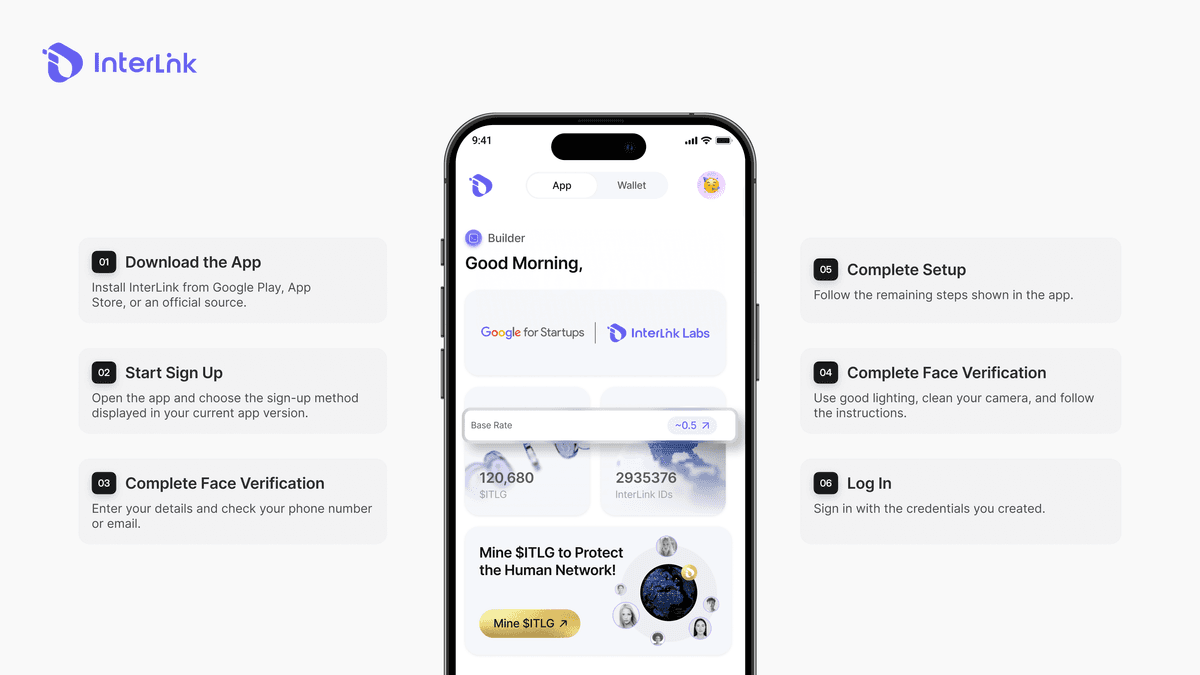
Getting started with InterLink begins with the InterLink Network mobile app. The exact registration screens may vary between app versions, but the general process starts with installing the official app and completing the account and identity verification steps shown on your device.
Step 1: Download the official InterLink Network app
Download and install the InterLink Network app through the official download page or an official app-store listing provided by InterLink. Avoid third-party APKs or unofficial download sources.
Download InterLink Network from the official InterLink website
Step 2: Open the app and start registration
Launch InterLink Network and follow the registration option displayed in the app. The available options and interface may differ depending on your device and the current app version.
Step 3: Enter the required account information
Provide the information requested by the app, such as your account credentials or other registration details. Check the information carefully before continuing to avoid errors caused by incorrect or previously used details.
Step 4: Complete human verification when requested
If the app requires facial or human verification, follow the on-screen instructions carefully. Use a clean front camera, suitable lighting, and make sure your face is clearly visible throughout the verification process.
InterLink describes Proof of Personhood and InterLink ID as core parts of its Human Network, so identity verification is an important part of the ecosystem.
Step 5: Enter an invite code if required
InterLink's official referral pages currently instruct new users to join the network using an invite code from an existing member. If the app requests a referral or invite code during registration, enter a valid code provided by an InterLink user.
Step 6: Complete the setup and access your account
Finish any remaining steps shown in the app. Once registration is complete, use the login method provided by the current version of InterLink Network to access your account.
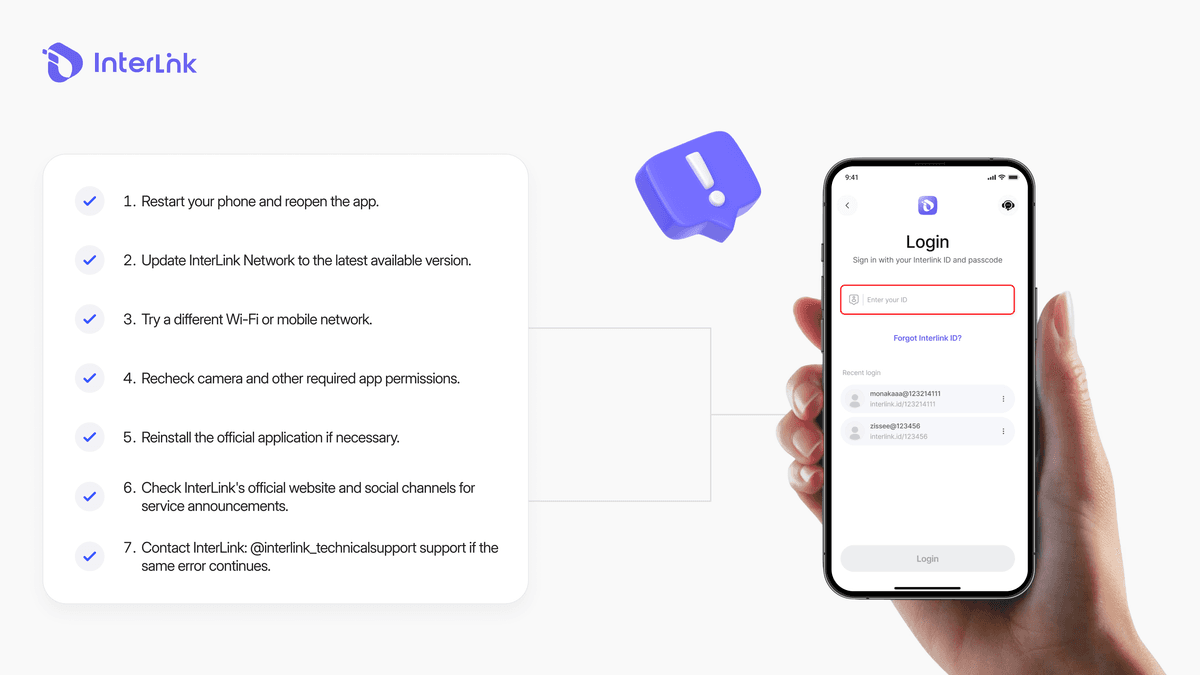
What to do if registration keeps failing?
If the basic troubleshooting steps do not solve the problem, there are a few additional things you can check before contacting support. These steps can help rule out common device, network, and app-related issues.
- Restart your phone and reopen the app.
- Update InterLink Network to the latest available version.
- Try a different Wi-Fi or mobile network.
- Recheck camera and other required app permissions.
- Reinstall the official application if necessary.
- Check InterLink's official website and social channels for service announcements.
- Contact InterLink: @interlink_technicalsupport support if the same error continues.
When contacting support, provide the exact error message, your device type, app version, and a screenshot if appropriate. This can make it easier for the support team to identify the problem.
Conclusion
Most sign-up hiccups on the InterLink Labs network boil down to a few simple things: a weak internet connection, tricky lighting during your face scan, duplicate account details, or an outdated app. By ensuring good lighting, keeping the app updated, and respecting InterLink Labs' one-person-one-account rule, you will easily sail through registration and start earning $ITLG as an official Human Node.
Always download the app directly from official InterLink Labs channels to keep your account secure and enjoy the best possible experience in the ecosystem!
Disclaimer: This guide from InterLink Labs is for educational purposes only. Always use official InterLink channels and never share your password, recovery phrase, or private keys with anyone.
Protect your new account right away. Learn how to lock the InterLink app and secure your biometric data here: InterLink Security Guide 2026: How to Protect Your Account & Digital Identity

