


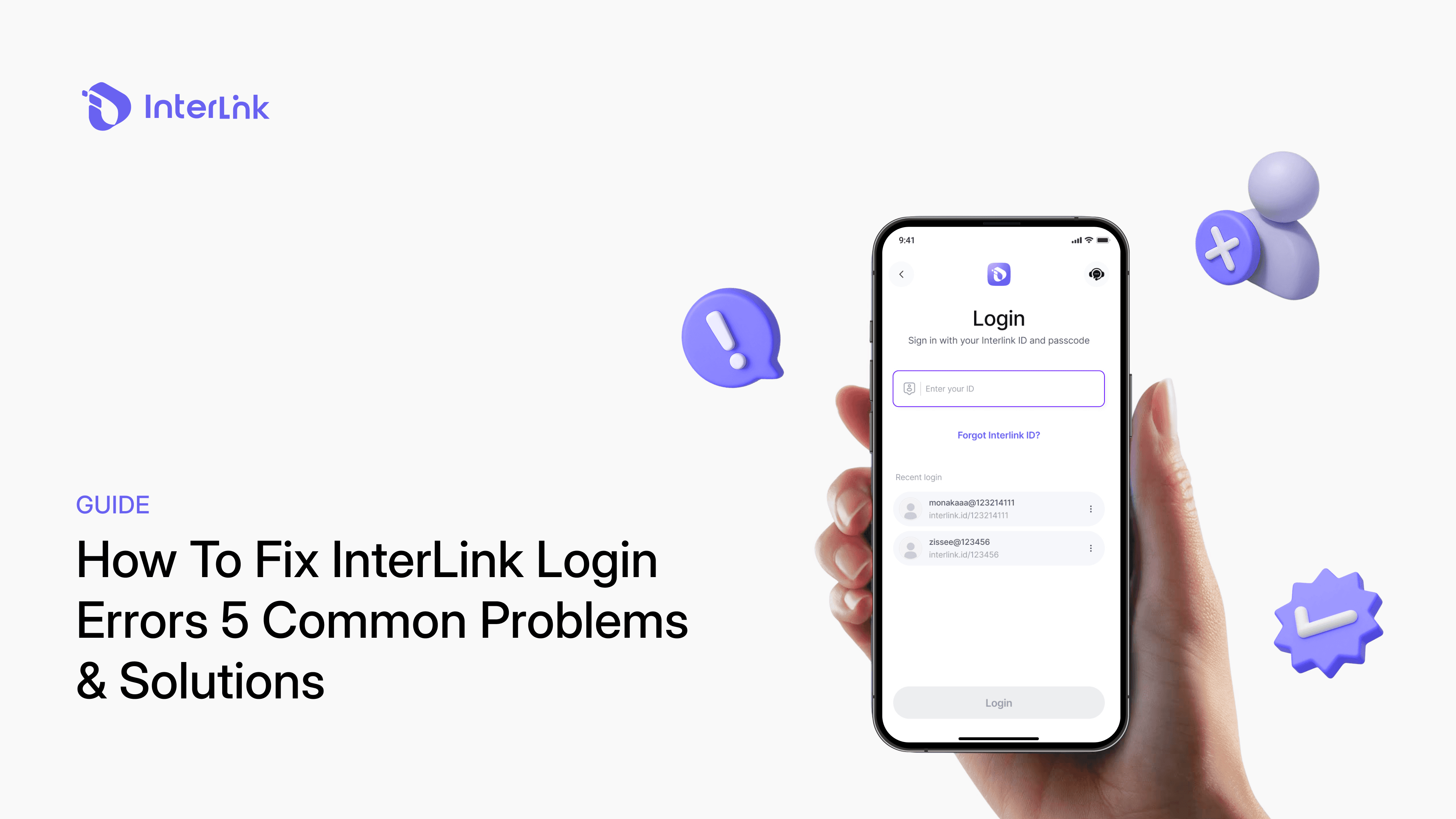
How To Fix InterLink Login Errors – 5 Common Problems & Solutions
Aug 26, 2026
Technology
Having trouble accessing the InterLink app due to “Invalid credentials,” “Account locked,” or “Session expired” messages? This guide explains how to fix InterLink login errors with practical solutions for the 5 most common login problems. Since InterLink uses verified Human Nodes and InterLink ID for Proof of Personhood, some errors may be security-related but are often easy to resolve. Follow the steps below to restore access quickly and continue mining safely.
Common InterLink login errors and how to fix them
Most users encounter one of the five errors listed below. The key is to identify the exact message on your screen and apply the matching solution. These fixes resolve the majority of cases while protecting your account and mining progress.
Error 1: “Invalid credentials”
This error appears when the email, InterLink ID, password, or PIN you entered does not match the information registered with the app. Typing mistakes, Caps Lock, or extra spaces are the most common causes.
- Double-check that you are using the exact email address or InterLink ID registered with the app.
- Make sure Caps Lock is turned off and there are no extra spaces before or after the text.
- If you no longer remember your password or PIN, tap "Forgot Password?" (or the recovery option) on the login screen and reset it through your registered email or linked Telegram. (See the full Password Recovery guide for more details.)
- After resetting, try logging in again with the new credentials.
- Tip: Save the new password in a secure place immediately so you do not lose access again.
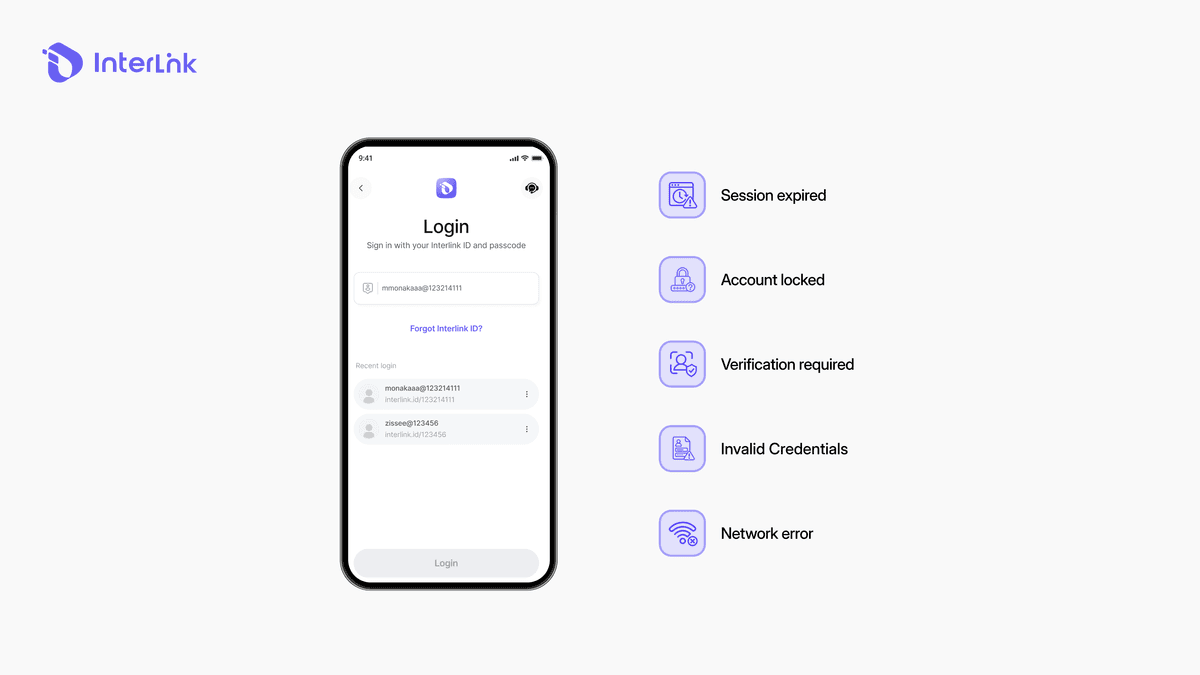
Error 2: “Account locked”
Your account has been temporarily locked after too many failed login attempts in a short period. This is a standard security measure designed to protect Human Nodes from unauthorized access.
- Wait 15–30 minutes before trying again (sometimes the lock can last a bit longer).
- Use the “Forgot Password?” option to create a new password safely instead of repeatedly entering the wrong one. Avoid continuous failed attempts, as this can extend the lock period.
- Once unlocked, log in carefully and consider enabling extra security features when available.
- If your account remains locked after 1 hour, contact official InterLink Support through the app or verified community channels.
Error 3: “Session expired”
Your previous login session has timed out automatically for security reasons. InterLink regularly refreshes sessions to keep accounts protected.
- Close the InterLink app completely (swipe it away from recent apps) and reopen it.
- Log in again with your registered email/ID and password or PIN.
- Ensure that the date and time on your phone are set to automatic (Settings → Date & Time).
- If the problem persists, restart your phone and try once more.
- Tip: Keeping the app updated helps reduce unexpected session timeouts.
Error 4: “Network error”
The app cannot connect to InterLink servers because of a weak, unstable, or restricted internet connection. Temporary server upgrades can also cause brief interruptions.
- Switch between Wi-Fi and mobile data to find a more stable connection.
- Turn Airplane Mode on for 10–15 seconds, then turn it off to refresh the network.
- Restart your phone and try logging in again once you have a reliable connection.
- Avoid public or untrusted Wi-Fi networks when possible, as they can interfere with secure connections.
Error 5: “Verification required”
The system asks you to confirm once more that you are a real human. This often appears after security updates, unusual activity, or when the app needs to re-verify your InterLink ID / Proof of Personhood.
- Follow the on-screen facial verification (liveness detection) instructions carefully.
- Use good lighting, remove hats, sunglasses, or any face coverings, and keep your face centered in the frame.
- Complete the Proof of Personhood / Human Node scan to unlock full access again.
- If the scan fails repeatedly, try again in better lighting or on a different device if needed.
- Tip: A successful scan confirms your unique human identity and restores full mining rights.
What to do if none of these solutions work?
If you have already tried every step above and still cannot log in, move on to these additional actions. They resolve most remaining cases without putting your account at risk.
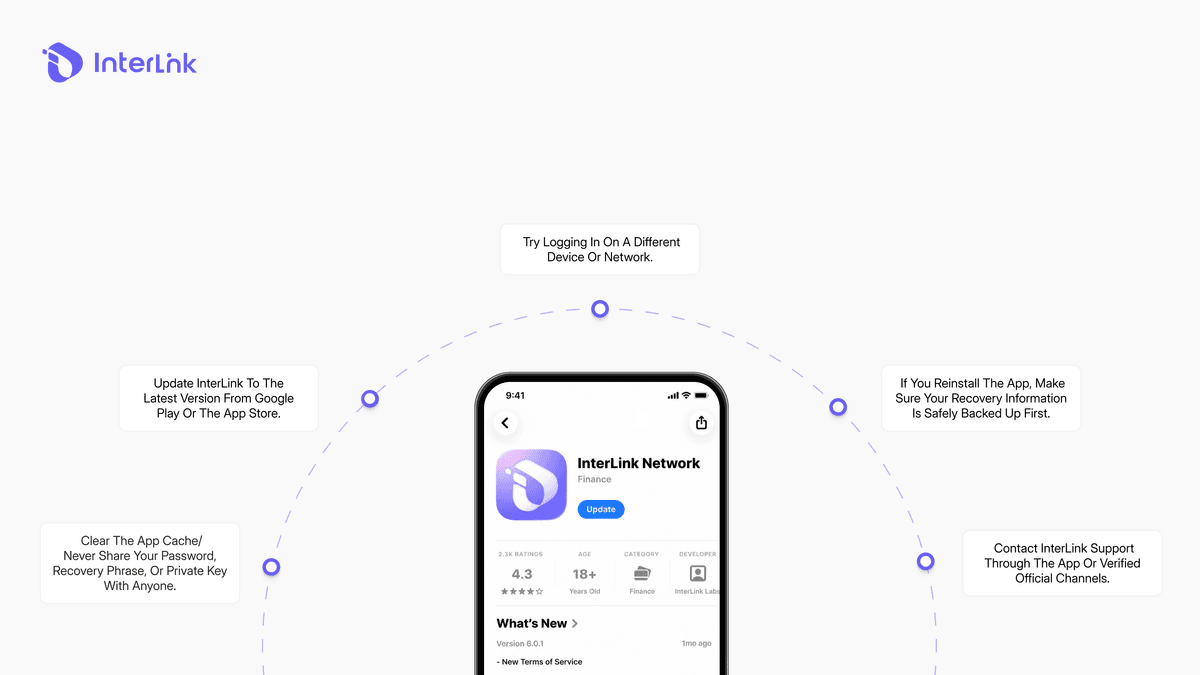
- Update the InterLink app to the latest version from Google Play Store or Apple App Store.
- Clear the app cache (on Android: Settings → Apps → InterLink → Storage → Clear Cache) or reinstall the app (always keep your recovery phrase safe first).
- Attempt to log in on a different device or with a different internet connection.
- Contact official InterLink Support via @interlink_technicalsupport through the app or verified community channels. Provide your registered email/ID and a clear description of the exact error message. Never share your password, recovery phrase, or private keys.
How to prevent login issues in the future?
Building a few simple habits can help you avoid most login problems and keep your Human Node secure over the long term.
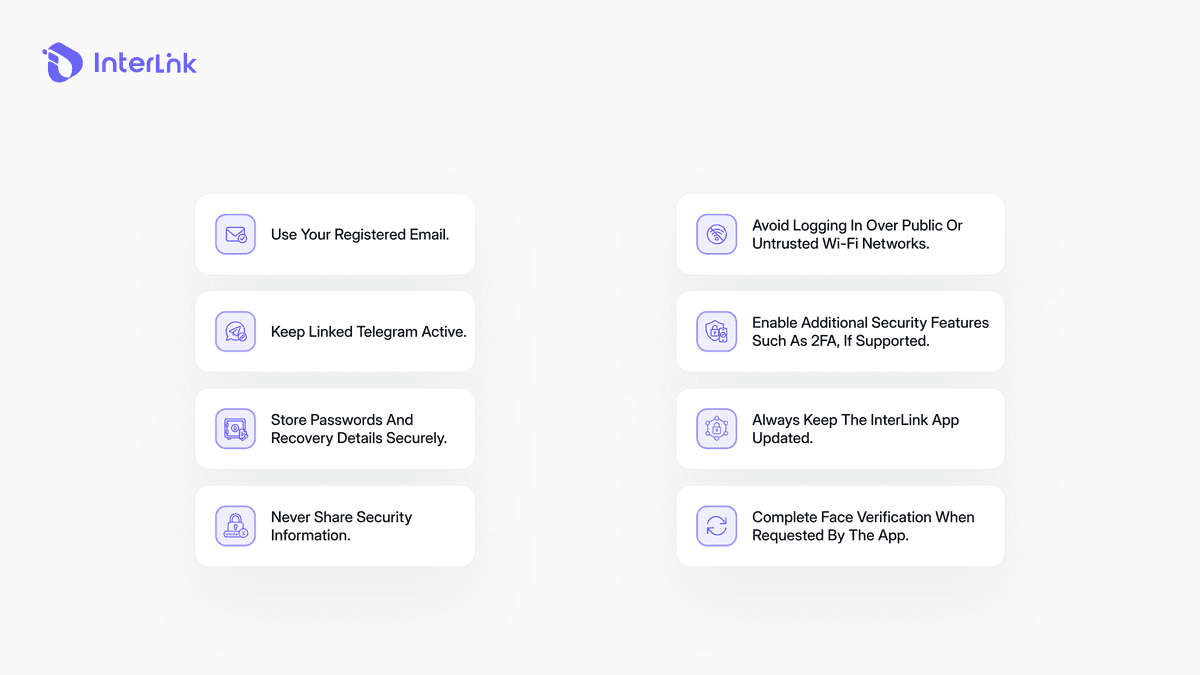
- Always use the same registered email and make sure you can still access that email (and any linked Telegram account).
- Store your password, PIN, and recovery phrase in a secure place (preferably offline) and never share them with anyone.
- Keep the InterLink app updated to the latest version.
- Enable extra security features (such as 2FA) as soon as they become available.
- Avoid logging in on public or untrusted Wi-Fi networks.
- Complete facial verification promptly whenever the app prompts you so your InterLink ID remains active and fully functional.
Conclusion
Most InterLink login errors are temporary and can be fixed quickly when you follow the right steps. Match the exact error message on your screen with the solutions above, and you will usually regain full access within a few minutes. Your account, mining progress, and Human Node status remain safe throughout the process.
If you follow the steps above, most login issues can be resolved quickly. Your account, mining progress, and Human Node status remain safe throughout the process.
Disclaimer: This guide is for educational purposes only. Always use official InterLink channels and never share your password, recovery phrase, or private keys with anyone. Still having trouble creating a new InterLink Labs account?
Read the full guide: How to Fix InterLink Registration Errors – Create Your Account Successfully

